
If you built your first website using Hostinger’s Website Builder but now want more flexibility and control, you’re not alone. Many users eventually move from Hostinger’s builder to WordPress, and for good reason.
WordPress offers unmatched customization, powerful SEO tools, and scalability that Hostinger’s built-in website builder can’t fully provide. In this detailed guide, you’ll learn how to change your Hostinger website to WordPress safely, efficiently, and without losing your content.
Why Change Hostinger Website to WordPress?
Before starting the process, it’s important to understand why so many website owners choose WordPress.
1. Greater Customization
WordPress gives you access to more than 11,000 free themes and over 60,000 plugins. You can design, modify, and expand your website without any technical limits.
2. Strong SEO Capabilities
With plugins such as Yoast SEO or Rank Math, you can optimize every page, title, and description for search engines like Google and Bing.
3. Complete Ownership and Portability
Unlike hosted builders, WordPress gives you full ownership of your content. You can easily move your website to another hosting provider whenever you want.
4. E-commerce Ready
Integrating WooCommerce allows you to build and manage a complete online store directly on your WordPress website.
5. Active Global Community
WordPress has a vast global user base. You’ll find thousands of tutorials, guides, and support forums that make troubleshooting and learning easier than ever.
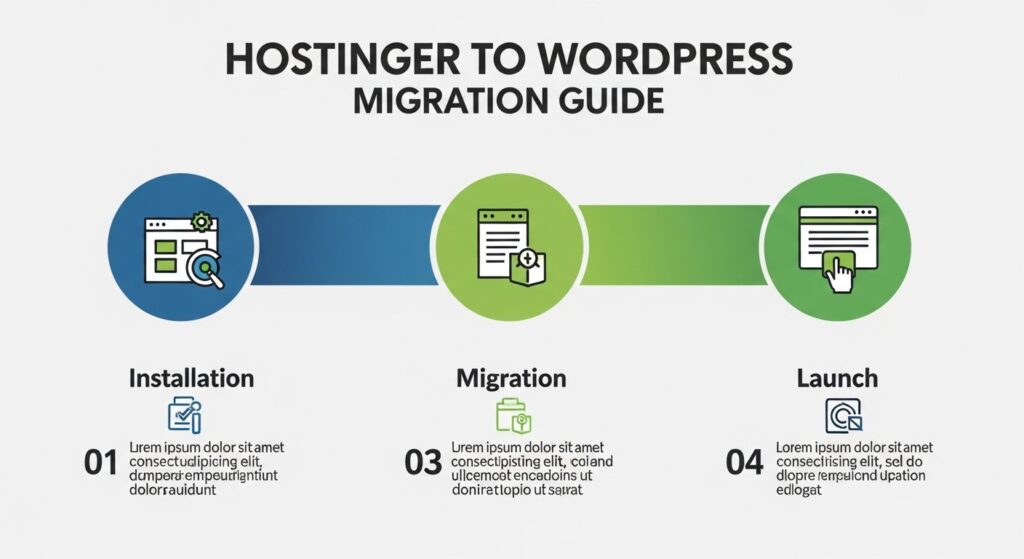
Before You Begin: Prepare for Migration
Before you start switching from Hostinger to WordPress, make sure you have the following ready:
- A Hostinger hosting plan that supports WordPress (Premium or Business plans are ideal)
- Your domain name is connected to Hostinger
- A backup of your current website
- Access to your Hostinger hPanel
Step 1: Install WordPress on Hostinger
Hostinger makes installing WordPress simple and beginner-friendly. Follow these steps:
- Log in to your Hostinger account and open the hPanel.
- Select your website and click the “Auto Installer” tool.
- Choose WordPress from the list.
- Fill in your site details such as:
- Website Title
- Admin Email
- Password
- Click “Install.”
Once the installation is complete, you can log in to your new WordPress dashboard by visiting:https://yourdomain.com/wp-admin
Step 2: Export Content from Hostinger Website Builder
At the moment, Hostinger’s website builder doesn’t provide an automatic export option. You’ll need to transfer your content manually.
- Copy and save all text from your website into Word or Google Docs.
- Download all images from your media gallery.
- Take screenshots of your layout and design sections to use as references later.
Pro Tip: You can also use tools like WP All Import, SiteSucker (Mac), or HTTrack (Windows) to make the process faster.
Step 3: Choose a WordPress Theme
After installing WordPress, select a theme that fits your brand’s design.
Navigate to Appearance → Themes → Add New and explore themes such as:
- Astra – Lightweight and easy to customize
- OceanWP – Ideal for blogs and eCommerce sites
- Kadence – Clean, modern, and easy to edit
- GeneratePress – Fast and SEO-friendly
If you prefer more professional options, you can purchase premium templates from ThemeForest or other marketplaces.
Step 4: Rebuild Your Pages in WordPress
Use the built-in WordPress Block Editor (Gutenberg) or a drag-and-drop builder like Elementor to recreate your website pages.
Common pages to rebuild include:
- Home Page
- About Page
- Services or Products Page
- Contact Page
Copy your saved text and images into these pages and adjust the design as needed. Elementor or similar builders make this process quick and visually accurate.
Step 5: Install Essential Plugins
Plugins are the core strength of WordPress. They add functionality and improve performance. Here are some essential ones:
| Purpose | Recommended Plugin |
|---|---|
| SEO | Yoast SEO or Rank Math |
| Speed Optimization | WP Rocket or LiteSpeed Cache |
| Security | Wordfence |
| Backups | UpdraftPlus |
| Design and Page Building | Elementor |
| Forms | WPForms |
These plugins ensure your website runs smoothly, securely, and efficiently.
Step 6: Redirect Your Old URLs (Optional)
If your new WordPress pages have different URLs from your old Hostinger builder site, you should set up 301 redirects. This preserves your SEO rankings and ensures visitors don’t land on broken pages.
You can create redirects using:
- The Redirection Plugin, or
- The
.htaccessfile manually (for advanced users)
Redirecting your old links keeps your SEO stable and provides a seamless user experience.
Step 7: Launch and Test Your WordPress Site
Before publishing your new WordPress site, test everything carefully.
Check the following:
- All pages and internal links
- Mobile responsiveness
- Contact forms and buttons
- SEO settings and metadata
- Page speed using Google PageSpeed Insights
Once everything looks good, unpublish your old Hostinger builder site and make your WordPress site live.
SEO Tips After Migration
After migrating, optimize your new site for search engines to regain or improve your visibility.
- Submit your site to Google Search Console.
- Use an XML sitemap generated by Yoast or Rank Math.
- Compress images using TinyPNG or similar tools.
- Install Google Analytics 4 (GA4) to track performance and visitors.
Real Example: Small Business Success Story
A café owner in Bristol originally built their website using Hostinger’s Website Builder. Later, they decided to switch to WordPress to improve SEO and introduce online ordering.
After migrating:
- Page load speed improved by 40%
- The website ranked on Google’s first page for “best café in Bristol”
- Online orders increased by 65% within two months
This example shows how much flexibility and performance WordPress can offer when compared to basic site builders.
Final Thoughts
Switching from Hostinger’s Website Builder to WordPress requires a bit of time, but it’s completely worth the effort. You gain total control over your website, better SEO results, more design freedom, and a platform that can grow alongside your business
If your current website feels limited, now is the right time to move to WordPress and take your online presence to the next level.